

Storefront Actions 範例:在精選商品標題下方新增內容
Storefront 有許多 add_action() 函數。這些函數允許您使用 HTML、PHP、Javascript 將內容區段插入核心範本。例如,假設您想在首頁「精選商品」區段下方新增說明或甚至圖片。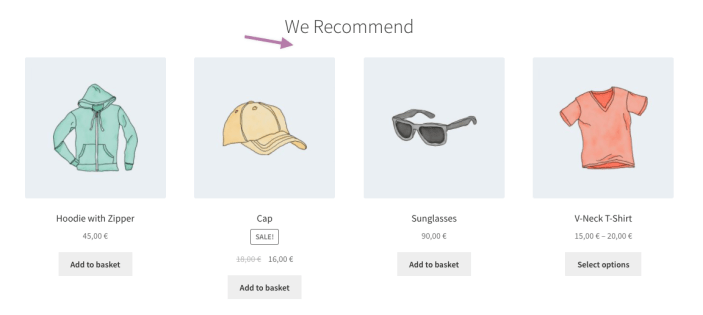
建立函數
首先,建立函數。名稱可自訂,選擇有意義的名稱即可。例如:add_featured_text_example()。此函數顯示(或輸出)某些文字:echo "<p>These are definitely our best products to consider!</p>";。
找到正確的掛鉤
其次,找到要使用的正確位置(或掛鉤)。Hookr.io 等外掛可提供視覺化概覽: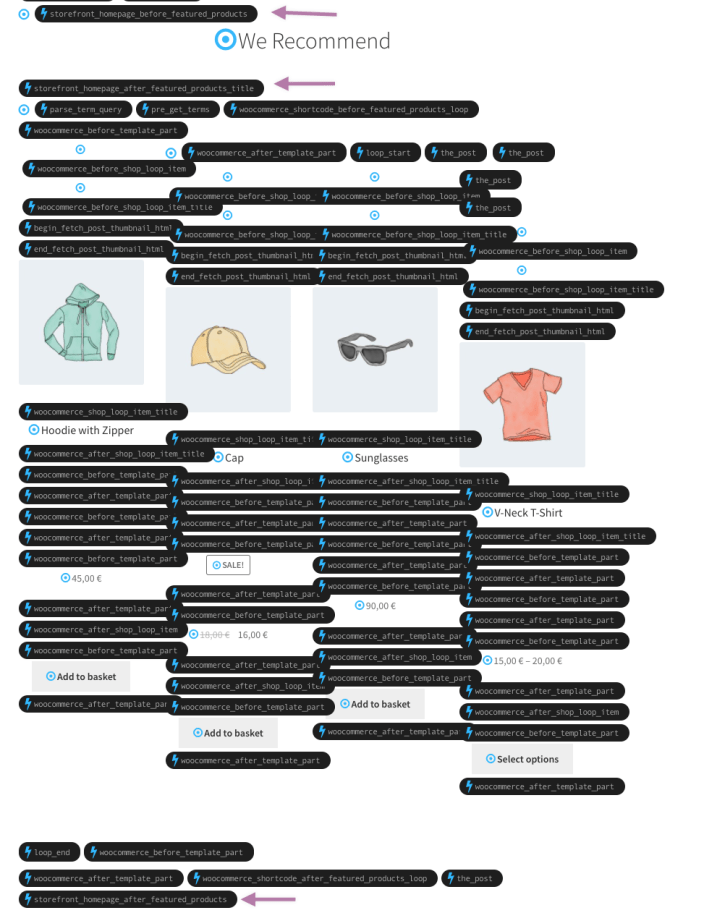 這當然也會新增首頁上作用中的所有 WooCommerce 掛鉤,但可輕鬆查看我們可能考慮的 Storefront 掛鉤:
storefront_homepage_before_featured_productsstorefront_homepage_after_featured_products_titlestorefront_homepage_after_featured_products
其中,storefront_homepage_after_featured_products_title 會顯示在「精選商品」標題下方。
新增動作
接下來需要插入一些文字。在 WordPress 術語中,這稱為新增動作。我們透過首先使用掛鉤(storefront_homepage_after_featured_products_title),然後呼叫剛建立的函數(add_featured_text_example)在正確位置新增動作(add_action())。結果如下程式碼片段:
此檔案包含隱藏或雙向 Unicode 文字,其解譯或編譯方式可能與下方顯示的不同。若要檢視,請在可顯示隱藏 Unicode 字元的編輯器中開啟檔案。深入瞭解雙向 Unicode 字元
| // 在精選商品標題下方插入文字
---|---
| function add_featured_text_example() {
| // 輸出內容
| echo '
' . esc_html__( 'These are definitely our best products to consider!', 'storefront' ) . '
';| }
| add_action( 'storefront_homepage_after_featured_products_title' , 'add_featured_text_example' );
檢視原始碼 storefront-add-featured-product-text-example.php 由 GitHub 提供
需讓佈景主題知道使用此程式碼。為此,可將程式碼片段貼到子佈景主題的 functions.php 檔案中。結果如下: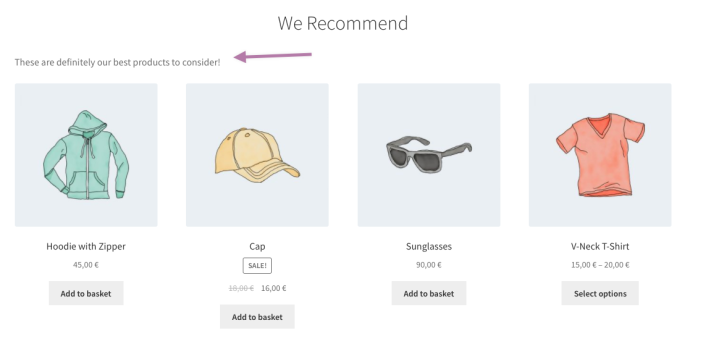 最後一步是為
 <p> 元素新增一些樣式或類別以新增自訂 CSS,但這將是另一個教學。